REST API Manager
Take full control of your WordPress REST API with the only plugin built for API security. Get granular endpoint management, real-time monitoring, and advanced filtering—while eliminating risks like unauthorized access and hidden activity. One plugin delivers both airtight security and faster performance.
Features
Everything you need to manage REST APIs effectively.
Advanced Filtering System
Powerful multi-criteria filtering to find exactly what you’re looking for. Filter endpoints by namespace, HTTP method (GET, POST, PUT, DELETE), access status (allowed/blocked), endpoint type, and more. Combine multiple filters to quickly locate specific endpoints in large API implementations.
Endpoint Preview Feature
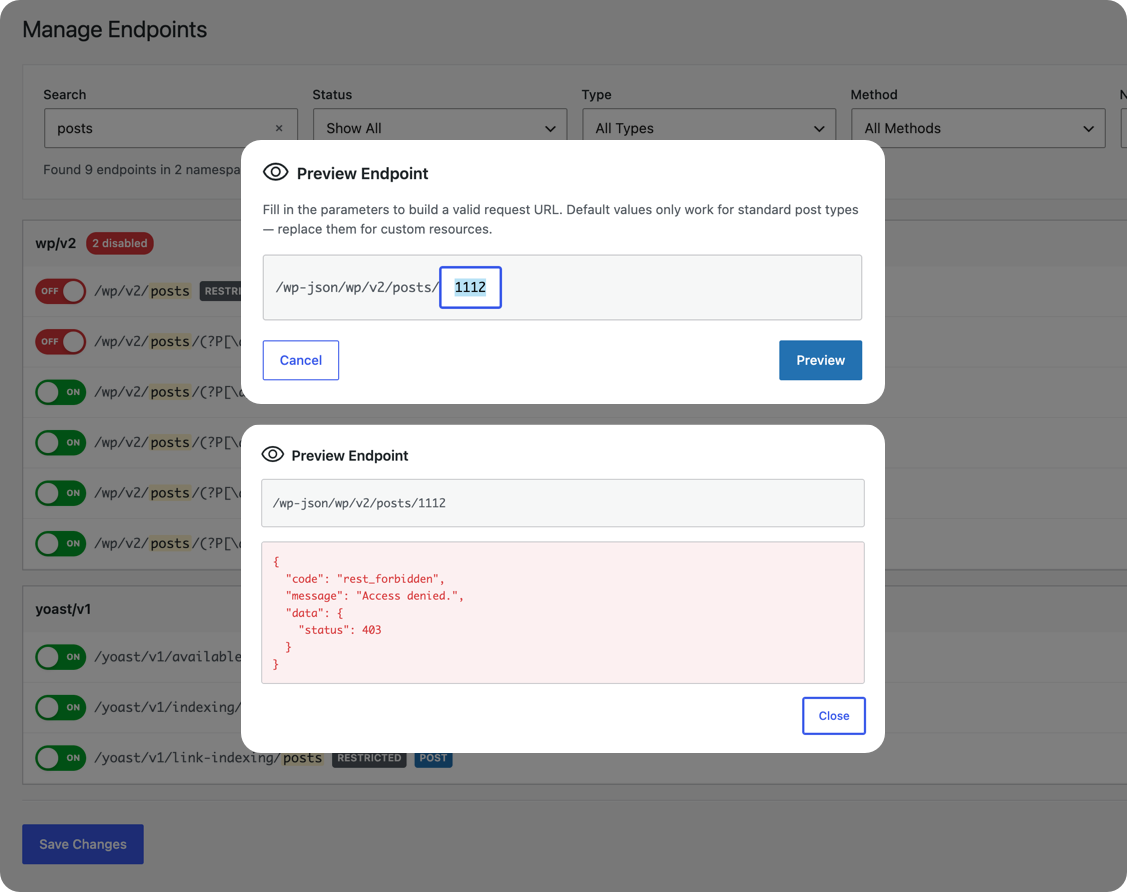
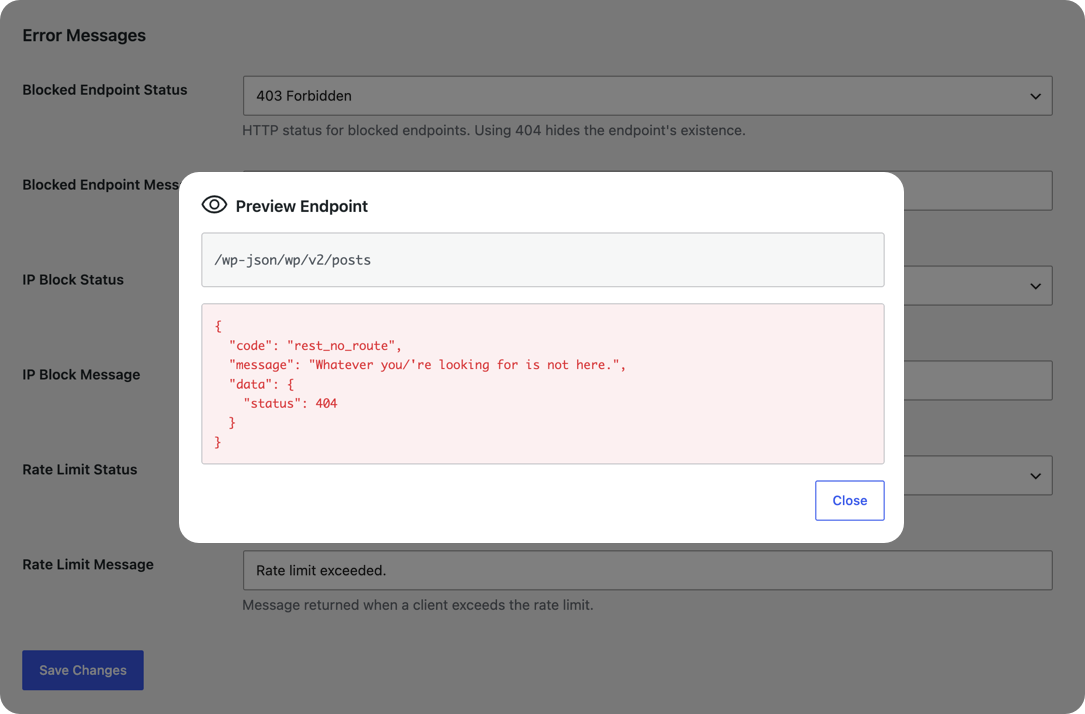
View detailed information about any endpoint without leaving the dashboard. See accepted parameters, required authentication, supported HTTP methods, callback functions, and permission checks. Understand exactly how an endpoint works before modifying its access settings.
API Security & Insights
Get a quick overview of your REST API health and security. View total endpoints, namespace breakdowns, and recent activity, alongside real-time updates on blocked requests. Instantly spot suspicious behavior, confirm security rules are working, and monitor your API at a glance—all without leaving the dashboard.
Security Logs Page
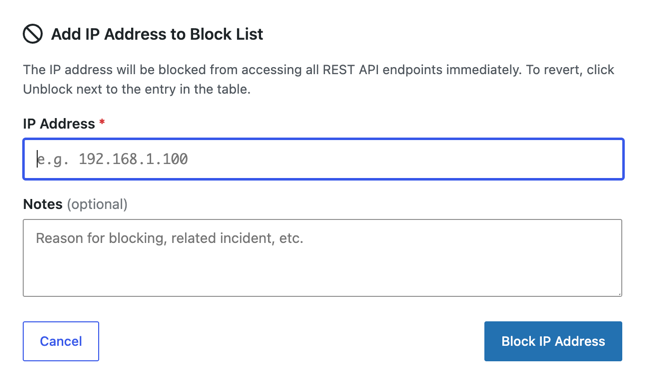
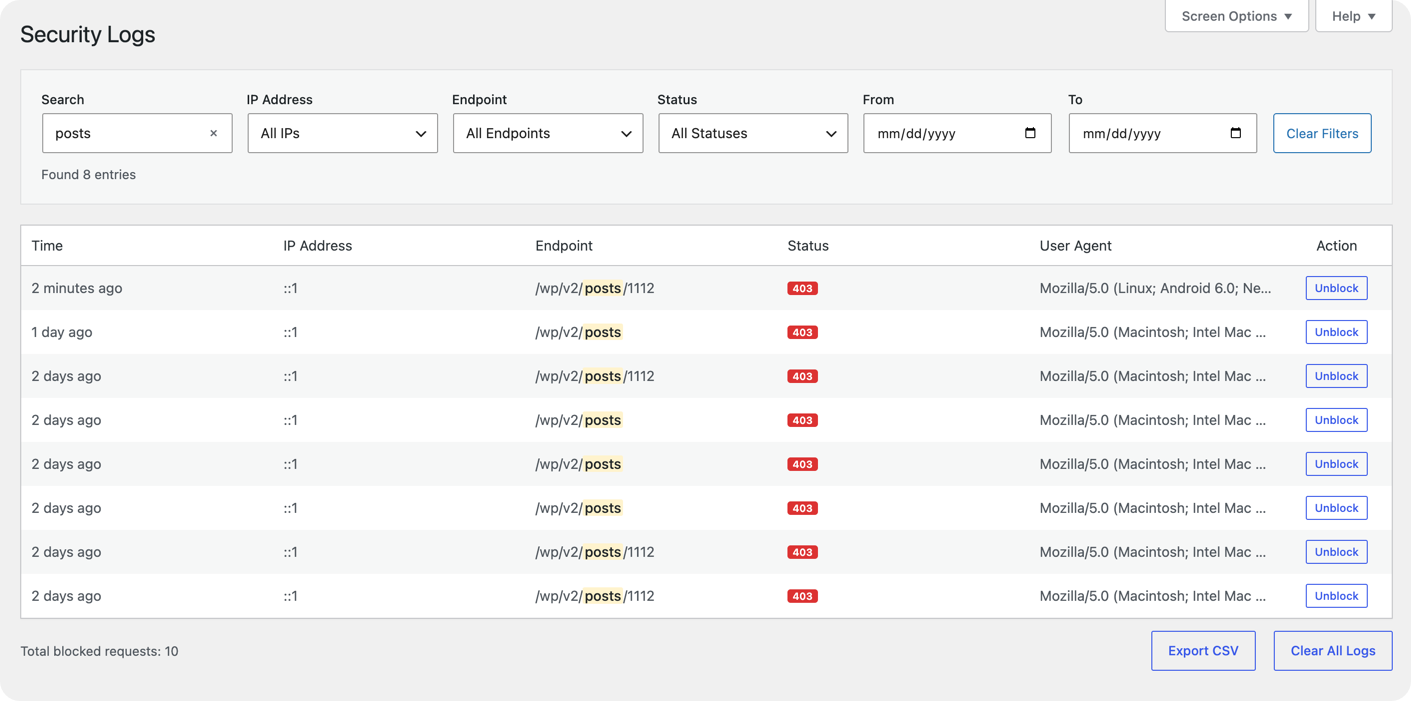
Comprehensive logging of all blocked API requests. Track who’s trying to access blocked endpoints, when attempts occurred, IP addresses, user agents, and what they were trying to access. Essential for security monitoring, identifying attack patterns, and fine-tuning your API access controls.
Other Features
Dynamic Endpoints
Endpoints with variable route parameters (e.g., /posts/(?P\d+)) are specially handled and visualized to clearly show dynamic parts, parameter requirements, and complex routing patterns at a glance.
Theme & Plugin Endpoints
Distinguishes between WordPress core endpoints and those added by plugins or themes, helping you identify third-party contributions, audit code, and better understand your site’s API attack surface.
Endpoint Search
Instantly search across all endpoint routes, namespaces, and descriptions, with real-time filtering that makes it easy to find specific endpoints even on sites with hundreds of routes.
Static/Dynamic Endpoint Filter
Distinguishes between static endpoints with fixed routes and dynamic endpoints with variable parameters, helping you spot those that need special security considerations and manage them separately.
Enabled/Disabled Endpoint Filter
Filter endpoints by access status—view only allowed, only blocked, or all endpoints—to quickly review security settings and ensure critical routes are protected while public ones remain accessible.
Namespace Filter
Quickly isolate endpoints within specific namespaces to troubleshoot plugin-specific API issues, review security settings, or manage access controls on a per-plugin basis.
CSV Export
Export your API logs to CSV for documentation, compliance reporting, security audits, or backups, with the option to export filtered results for focused analysis.
Pricing
Choose the plan that fits your business.
Personal
1 website
$ 49 /yr
Includes all PRO features + unlimited updates per year for 1 websites.
Freelancer
5 websites
$ 99 /yr
Includes all PRO features + unlimited updates per year for 5 websites.
Agency
Unlimited websites
$ 199 /yr
Includes all PRO features + unlimited updates per year for unlimited websites.
FAQ
Got questions? We've got you covered.
What is REST API Manager Pro?
REST API Manager Pro is a WordPress plugin that provides comprehensive control over your WordPress REST API endpoints. It allows you to selectively enable or disable specific endpoints, enhancing security and performance by reducing your site’s attack surface.
Why do I need this plugin?
By default, WordPress exposes all REST API endpoints, including those from plugins and themes. This can create security vulnerabilities and performance overhead. REST API Manager Pro allows you to:
- Enhance Security: Disable unused endpoints to reduce potential attack vectors
- Improve Performance: Reduce server load by blocking unnecessary API calls
- Monitor Activity: Track blocked requests and identify potential threats
- Granular Control: Manage endpoints at a detailed level, not all-or-nothing
What's the difference between Free and Pro versions?
| Feature |
Free
|
Pro
|
|---|---|---|
| WordPress Core Endpoints |
Yes
|
Yes
|
| Plugin/Theme Endpoints |
No
|
Yes
|
| Dynamic Endpoints |
No
|
Yes
|
| Endpoint Filters |
No
|
Yes
|
| Live Preview |
No
|
Yes
|
| Security Logging |
No
|
Yes
|
| CSV Export |
No
|
Yes
|
| Priority Support |
No
|
Yes
|
Who should use REST API Manager Pro?
- WordPress Developers: Managing client sites with security requirements
- Agencies: Deploying secure solutions across multiple sites
- E-commerce Sites: Protecting WooCommerce and payment endpoints
- Membership Sites: Securing user data and restricted content
- Enterprise: Running mission-critical WordPress installations
- Security-Conscious Site Owners: Anyone wanting better API control
How do I install REST API Manager Pro?
- Purchase a license from our website
- Download the plugin ZIP file
- Go to WordPress Admin → Plugins → Add New → Upload Plugin
- Upload the ZIP file and activate
- Go to Settings → REST API Manager → License
- Enter your license key and activate
Do I need to configure anything after installation?
The plugin works out of the box with safe defaults. However, we recommend:
- Review Your Endpoints: Go to REST API Manager to see all available endpoints
- Identify Unused Endpoints: Look for endpoints you don’t need
- Test Before Disabling: Use the Preview feature (Pro) to test endpoint responses
- Disable Gradually: Start by disabling obviously unused endpoints
- Monitor Logs: Check security logs (Pro) for blocked requests
Will this plugin break my site?
No, REST API Manager Pro is designed to be safe:
- Default State: All endpoints are enabled by default
- Selective Disabling: You choose exactly what to disable
- Easy Reversal: Re-enable any endpoint with one click
- Preview Feature (Pro): Test endpoints before making changes
- Logging (Pro): See what requests are being blocked
What are the minimum requirements?
- WordPress 5.0 or higher
- PHP 7.2 or higher
- MySQL 5.6 or higher
- HTTPS recommended (for security)
What is an endpoint?
An endpoint is a URL in the WordPress REST API that provides specific functionality. For example:
- /wp/v2/posts – Returns blog posts
- /wp/v2/users – Returns user information
- /wc/v3/products – Returns WooCommerce products (if installed)
Each endpoint can be individually enabled or disabled with REST API Manager Pro.
What are static vs dynamic endpoints?
Static Endpoints: Fixed routes without parameters
- Example: /wp/v2/posts
- Returns a collection or resource
Dynamic Endpoints: Routes with variable parameters
- Example: /wp/v2/posts/(?P
[\d]+) - Requires an ID to access a specific item
- Pro version required to manage these
What is endpoint filtering? (Pro Feature)
The Pro version includes 4 advanced filtering options:
- Search/Filter: Quickly find specific endpoints by name
- Filter by Namespace: View only endpoints from specific plugins (e.g., wc/v3 for WooCommerce)
- Filter by Status: Show only enabled or disabled endpoints
- Filter by Type: Show only static or dynamic endpoints
This makes managing large numbers of endpoints much easier.
How does the Endpoint Preview work? (Pro Feature)
The Endpoint Preview feature allows you to:
- Click “Preview” next to any endpoint
- See sample data that endpoint returns
- Test the endpoint without using external tools
- Verify endpoints work before disabling others
- Understand what data each endpoint exposes
This is a unique feature – no other REST API management plugin offers this.
What is the Endpoint Summary Dashboard? (Pro Feature)
The Summary Dashboard provides at-a-glance statistics:
- Total number of endpoints on your site
- Number of enabled vs disabled endpoints
- Breakdown by namespace (WordPress, WooCommerce, etc.)
- Recently modified endpoints
- Most blocked endpoints (from security logs)
How do Security Logs work? (Pro Feature)
Security Logs track:
- Blocked Requests: When someone tries to access a disabled endpoint
- IP Addresses: Who attempted the request
- Timestamp: When the attempt occurred
- Endpoint: Which endpoint was targeted
- User Agent: What tool/browser was used
Logs can be:
- Viewed in the WordPress admin
- Exported to CSV for analysis
- Automatically cleaned up after 30 days (configurable)
Can I export logs? (Pro Feature)
Yes! The Pro version includes CSV export:
- Go to REST API Manager → Logs
- Select date range (optional)
- Click “Export to CSV”
- Analyze logs in Excel, Google Sheets, or security tools
This is useful for:
- Security audits
- Compliance reporting
- Identifying attack patterns
- Client reporting (for agencies)
How do I activate my license?
- Purchase a plan from our website
- Check your email for the license key
- Log in to your WordPress admin
- Go to Settings → REST API Manager → License
- Enter your license key
- Click “Activate License”
You’ll see a success message when activation is complete.
Can I use one license on multiple sites?
Yes, depending on your plan:
- Free: Unlimited sites (with limited features)
- Personal: 1 site only
- Freelancer: Up to 5 sites
- Agency: Unlimited sites
Development and staging sites don’t count toward your limit.
What happens if my license expires?
When your annual license expires:
- Plugin continues to work with existing settings
- Endpoints remain enabled/disabled as configured
- No new updates or bug fixes
- No access to support
- Pro features will be disabled
You can renew at any time to restore Pro features.
Do you offer refunds?
Yes! We offer a 30-day money-back guarantee. If you’re not satisfied for any reason within 30 days of purchase, contact us for a full refund.
I disabled an endpoint and now my site isn't working!
Quick Fix:
- Go to REST API Manager → Endpoints
- Find the endpoint you disabled
- Click “Enable” to turn it back on
- Test your site functionality
Prevention: Always use the Preview feature (Pro) before disabling endpoints.
How do I know which endpoints are safe to disable?
Safe to Disable (Usually):
- Endpoints from plugins you’ve uninstalled
- User endpoints if you don’t have public
- profiles (/wp/v2/users)
- Media endpoints if you don’t allow file uploads
- Comment endpoints if comments are disabled
DO NOT Disable:
- Endpoints used by your theme
- Endpoints used by page builders (Elementor, Gutenberg)
- WooCommerce endpoints if you run an online store
- Any endpoint with recent activity in the logs (Pro)
Best Practice: If unsure, leave it enabled.
The plugin isn't showing plugin/theme endpoints (Free version)
This is expected. The Free version only shows WordPress core endpoints. To see and manage plugin/theme endpoints (like WooCommerce, BuddyPress, etc.), upgrade to a Pro plan.
Security logs aren't showing any data (Pro)
Possible causes:
- No Blocked Requests: If no one has tried accessing disabled endpoints, logs will be empty (this is good!)
- Logging Not Enabled: Check Settings → REST API Manager → Enable Security Logging
- Logs Cleared: Logs auto-delete after 30 days by default
- Database Issue: Check if the logs database table exists
Try disabling a test endpoint and accessing it manually to generate a log entry.
I can't activate my license
Common Issues:
1. **Invalid License Key**: Copy-paste carefully, no extra spaces
2. **Already Activated**: Check if it’s active on another site (Personal = 1 site limit)
3. **Expired License**: Check your purchase date (licenses are annual)
4. **Server Connection**: Your server must be able to connect to our license server
5. **Local Development**: Use `WP_DEBUG` mode for local testing (bypasses license check)
Will this work with other plugins?
REST API Manager Pro works with all plugins that use the WordPress REST API, including:
- WooCommerce
- BuddyPress
- LearnDash
- MemberPress
- WPForms
- Gravity Forms
- Jetpack
- Yoast SEO
- And thousands more
If a plugin registers REST API endpoints, you can manage them with Pro.
Can I use this with a caching plugin?
Yes! REST API Manager Pro works with all major caching plugins:
- WP Rocket
- W3 Total Cache
- WP Super Cache
- LiteSpeed Cache
- Cloudflare
Note: After enabling/disabling endpoints, clear your cache to see changes take effect immediately.
Is my data sent anywhere?
License Verification Only (Pro):
- Your license key and domain are sent to our license server for validation
- This happens once per activation and daily for license checks
- No user data, content, or logs are ever transmitted
No External Connections (Free):
- The free version never connects to external servers
- All data stays on your WordPress installation
Are security logs stored locally?
Yes. All security logs are stored in your WordPress database. Nothing is sent to external servers. You have full control and ownership of your log data.
Does this plugin collect any personal data?
No. REST API Manager Pro does not:
- Track user behavior
- Collect personal information
- Phone home with usage stats
- Insert any tracking scripts
The only external connection is license verification for Pro users.
Can I use this plugin on client sites?
Yes! The Freelancer and Agency plans are specifically designed for:
- Web developers managing client sites
- Agencies deploying to multiple clients
- Consultants providing WordPress services
White Label: The plugin can be white-labeled (remove branding) for professional client presentations.
Will this protect me from all API attacks?
REST API Manager Pro significantly reduces your attack surface by:
- Disabling unnecessary endpoints
- Logging suspicious activity
- Providing visibility into API access
However, it’s one layer of security. We recommend:
- Using a security plugin (Wordfence, iThemes Security)
- Keeping WordPress and plugins updated
- Using strong passwords and 2FA
- Regular backups
- HTTPS/SSL certificate
Does this replace a security plugin?
No. REST API Manager Pro is specialized for API security. A comprehensive security plugin like Wordfence provides:
- Firewall
- Malware scanning
- Login protection
- File integrity monitoring
Use REST API Manager Pro alongside a security plugin for best protection.
Does this work with headless WordPress?
Yes! REST API Manager Pro is essential for headless WordPress setups where you need to:
- Expose only necessary endpoints to your frontend
- Secure sensitive data endpoints
- Monitor API access
- Optimize performance by blocking unused Endpoints
Many headless WordPress developers use REST API Manager Pro.
Can I use this with the WordPress Block Editor (Gutenberg)?
Yes. The plugin is fully compatible with Gutenberg. Be careful not to disable core endpoints that Gutenberg relies on, such as:
- /wp/v2/posts
- /wp/v2/pages
- /wp/v2/blocks
- /wp/v2/media
The Preview feature (Pro) helps you test before disabling.
Does this work with WP-CLI?
Currently, REST API Manager Pro has a WordPress admin interface only. WP-CLI support is planned for a future release.
Can I programmatically manage endpoints?
Yes! Developers can use our filter hooks:
add_filter('rest_api_manager_endpoint_enabled', function($enabled, $endpoint) {
if ($endpoint === '/wp/v2/users') {
return false; // Disable users endpoint
}
return $enabled;
}, 10, 2);
See the developer documentation for complete API reference.
Does this affect REST API authentication?
No. REST API Manager Pro controls **which endpoints are accessible**, not **who can access them**. Authentication is handled separately by WordPress and plugins like Application Passwords or OAuth.
You can use both:
- REST API Manager Pro to control endpoint availability
- Authentication plugins to control access permissions
Is it multisite compatible?
Yes! REST API Manager Pro works on WordPress Multisite:
- Network Activate: Apply settings across all sites
- Per-Site Activation: Different settings per subsite
- Network Admin: Manage endpoints from network dashboard
Agency license recommended for multisite networks.
How are endpoints stored in the database?
Endpoint settings are stored as WordPress options:
- Enabled/disabled state per endpoint
- Security logs in a custom database table
- License information (encrypted)
All data is stored locally in your WordPress database.
How do I get support?
- Free Version:
- Community support forum on WordPress.org
- Documentation and FAQ (this document)
- Personal Plan:
- Email support
- 48-hour response time during business days
- Access to knowledge base
- Freelancer Plan:
- Priority email support
- 24-hour response time
- Access to knowledge base
- Feature requests considered
- Agency Plan:
- Priority email support
- 12-hour response time (including weekends)
- Access to knowledge base
- Priority feature requests
- Direct developer access for complex issues
How do I contact support?
Email: support@wpbuoy.com
Documentation: http://wpbuoy.com/docs
License Issues: http://wpbuoy.com/my-account/licenses
Include in your support request:
- License key (if Pro user)
- WordPress version
- PHP version
- Description of the issue
- Steps to reproduce
- Screenshots (if applicable)
How often is the plugin updated?
- Security updates: Released immediately when needed
- Bug fixes: Released as needed (usually monthly)
- Feature updates: Quarterly releases
- Compatibility updates: When new WordPress versions release
All updates are free for active license holders.
Where can I find the changelog?
The full changelog is available:
- In the plugin directory:
CHANGELOG.md - On the WordPress.org plugin page
- In your account dashboard (for Pro users)
Can I request features?
Yes! We welcome feature requests:
- Free Users: Submit via WordPress.org forum
- Pro Users: Email support with detailed request
- Agency Users: Priority consideration for requests
Popular requests are added to the roadmap and announced via email.
Will the plugin work with future WordPress versions?
Yes. We commit to:
- Testing with WordPress beta releases
- Updating before major WordPress releases
- Maintaining backward compatibility
- Supporting the latest 3 major WordPress versions
How do I report a bug?
Security Issues: Email security@wpbuoy.com (do not post publicly)
Other Bugs:
- Check if it’s already fixed in the latest version
- Disable other plugins to rule out conflicts
- Test with a default WordPress theme
- Submit detailed report with:
- Steps to reproduce
- Expected vs actual behavior
- Error messages
- System information
We aim to fix critical bugs within 48 hours.
Still Have Questions?
If you didn’t find your answer here:
- Check Documentation: http://wpbuoy.com/docs
- Search Support Forum: WordPress.org plugin support
- Contact Support: support@wpbuoy.com (Pro users)
- Community Forum: Free users can ask questions on WordPress.org